Financial
Creating invoices
Creating invoices in Artistu is designed to be as simple, if not simpler, than any dedicated accounting software.
The creation process
Because all booking data is stored centrally, the system can pre-fill almost all the necessary information for you.
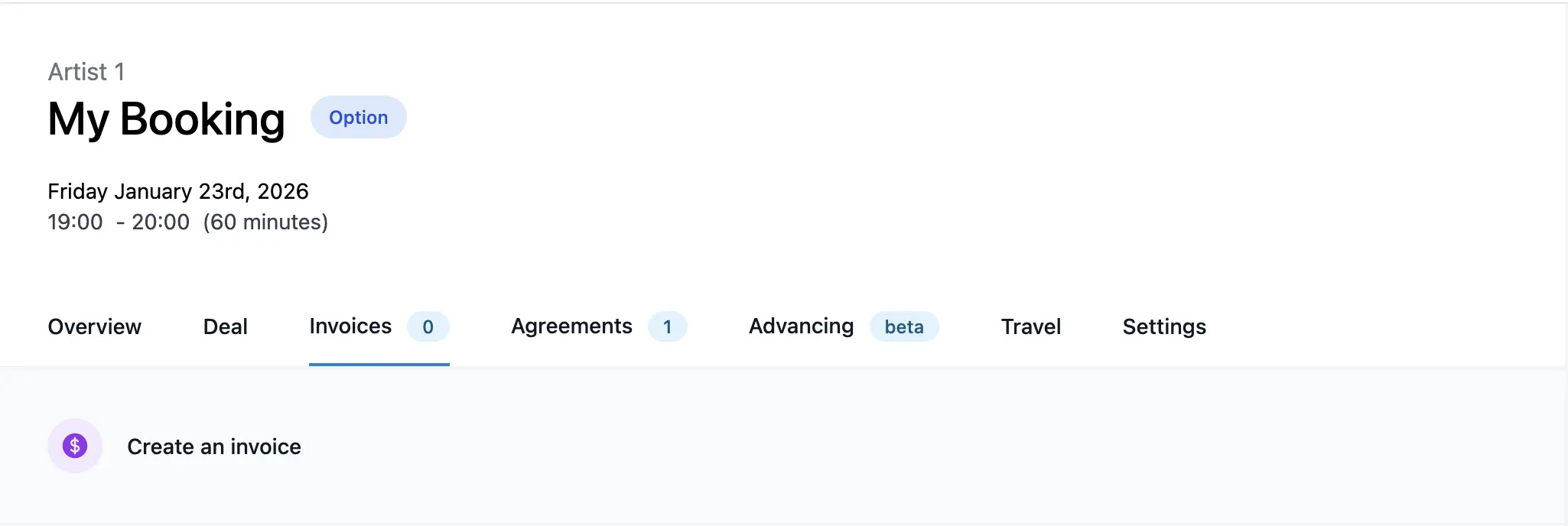
To start, simply Navigate to the Invoices tab of your booking and click on Create invoice.
Invoice settings
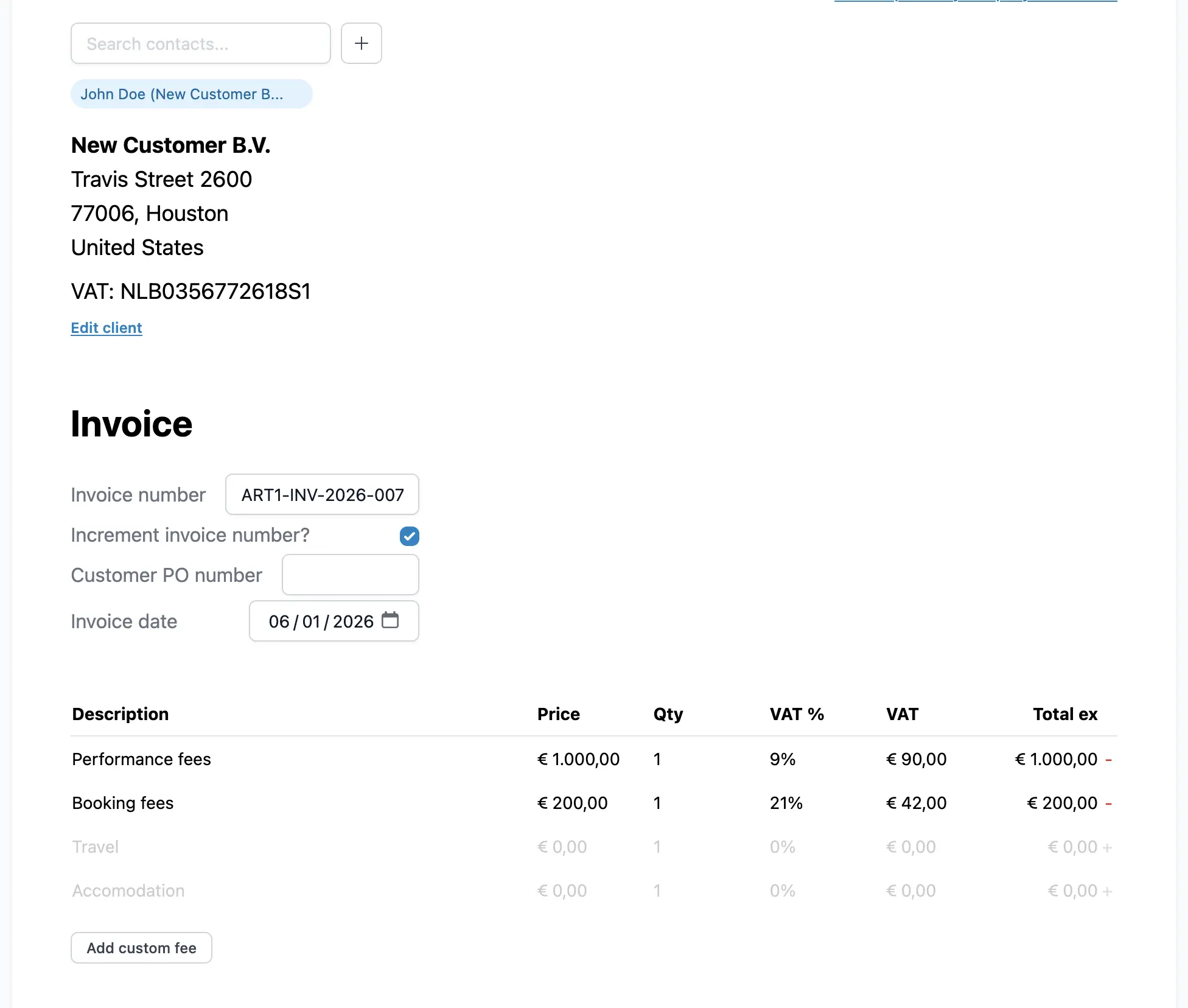
You will be presented with a modal where you can confirm the details of the invoice.
- Deal items: Choose which deal items you want to include. Items that have already been invoiced will be disabled to prevent duplication.
- Billing address: Select which of your stored billing addresses you want to send the invoice from.
- Contact: Select which of your stored contacts you want to send the invoice to.
- Invoice number: Enter the invoice number. This will be used to identify the invoice, Artistu manages automatic incremental invoice numbers.
Sending options
Once your invoice is created, you have several options for sending it to your customer.
Send by email
You can send the invoice directly via email. The system will attach the PDF and send it to the contact of your choice.
Peppol e-invoicing
Artistu proudly supports sending invoices via the Peppol network. This is a modern, secure, and standardized way of sending electronic invoices directly between accounting systems.
Benefits of Peppol:
- Secure: Direct transmission avoids the risks of email spoofing.
- Standardized: Your customer's accounting software can automatically process the invoice without manual entry.
- Fast: Delivery is instantaneous and confirmed.
To use this feature, you first need to create a Peppol sender ID in your billing address settings. Once set up, the Peppol delivery status will be visible directly on the invoice page.
Invoice statuses
Invoices in Artistu can have one of the following statuses, helping you track their progress:
- Draft: The invoice has been created but not yet finalized or sent.
- Sent: The invoice has been sent to the customer.
- Paid: The payment has been received and recorded.
- Credited: The invoice has been credited (refunded).
- Voided: The invoice has been cancelled before it was paid.
Invoice actions
You have a full suite of actions available for managing your invoices, including downloading the PDF, updating the status or quickly deleting it.
Need to refund an invoice?
To easily credit an invoice and create a credit note, use the automatic credit note feature.